dotfiles
install
This dotfiles repository is designed to be installed at ~/Codes/dotfiles.
Review the contents of the script before running it:
https://dot.umeru.ma/install
Open Terminal.app, and run:
bash -c "$(curl -fsSL https://dot.umeru.ma/install)"This will clone the repository to ~/Codes/dotfiles and set up your dotfiles.
Notes on bash and curl options:
bash:
-c: Execute the given string as a bash command (e.g.,bash -c "echo hello"outputshello).
curl:
-f(--fail): Fail silently on server errors (no output, exit non-zero).-s(--silent): Silent mode — do not show progress meter or error messages.-S(--show-error): When used with-s, show error messages on failure (since-salone is fully silent).-L(--location): Follow HTTP redirects automatically.
jump to dotfiles
In Terminal, you can quickly jump to the dotfiles directory by running:
dot .zshenv & .zshrc contains:
# on .zshenv
export DOTFILES="$HOME/Codes/dotfiles"

# on .zshrc
alias dot='cd $DOTFILES'
Deploy dotfiles
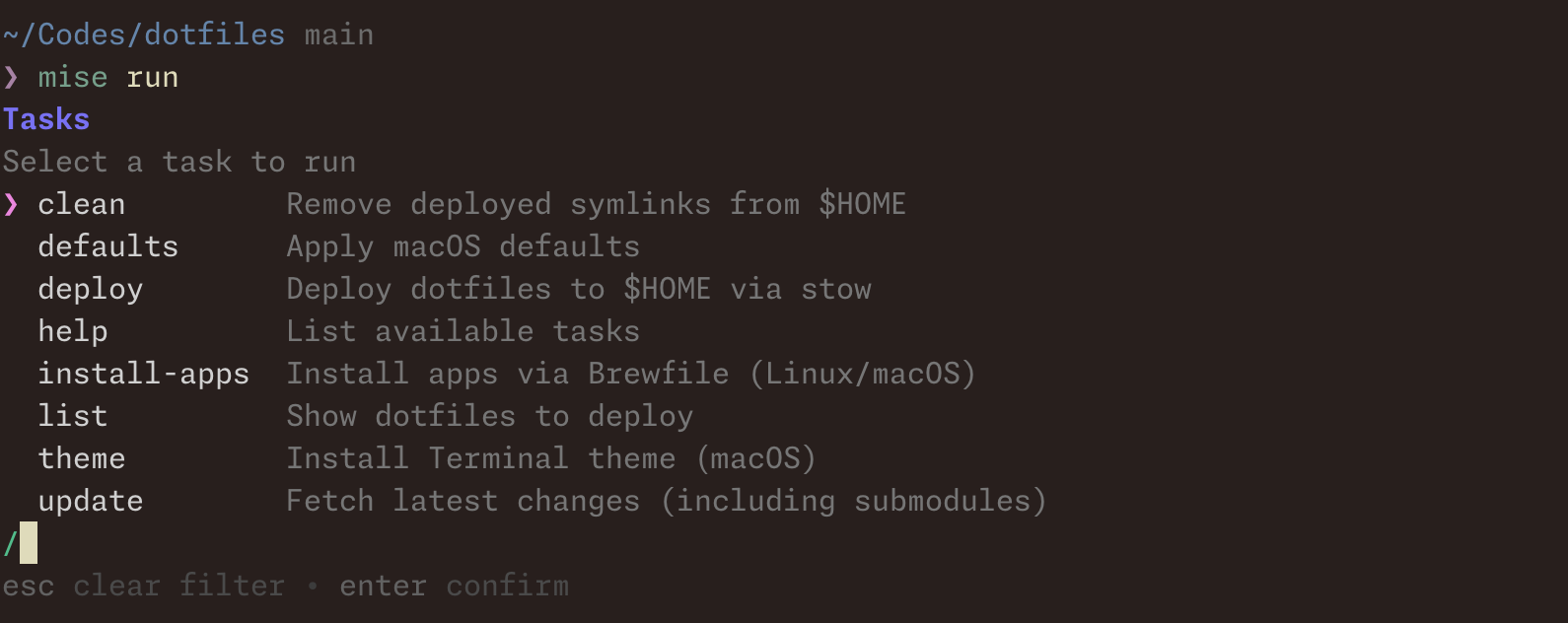
To deploy your dotfiles to your home directory, simply run:
dot && mise run deployPre-create subdirectories
Before deploying with GNU Stow, this repository can automatically create any required subdirectories in your home directory, based on a plain text list in .deploy_subdir.
How it works:
- Reads
.deploy_subdirline by line- Ignores blank lines and lines starting with
# - Trims whitespace
- Ignores blank lines and lines starting with
- Runs
mkdir -p "$HOME/<path>"for each valid line - Then deploys
home/using Stow
This process runs automatically as part of mise run deploy via the prepare-subdirs task dependency.
Usage
-
Add the directories you need to
.deploy_subdir(one path per line):# editors .config/micro .config/nvim # tools .local/share/fzf -
Deploy your dotfiles:
mise run deploy
This ensures all listed directories (e.g. ~/.config/micro) exist before Stow creates symlinks, making deployment more reliable.
Notes:
- Implementation is in
script/prepare-subdirs.zshand wired up inmise.tomlas the hiddenprepare-subdirstask (a dependency ofdeploy) - Input is tolerant of whitespace and comments
macOS defaults
To update macOS defaults setting, run:
dot && mise run defaultsmacOS Terminal theme
To apply theme for macOS Terminal, run:
dot && mise run themethen looks like this: